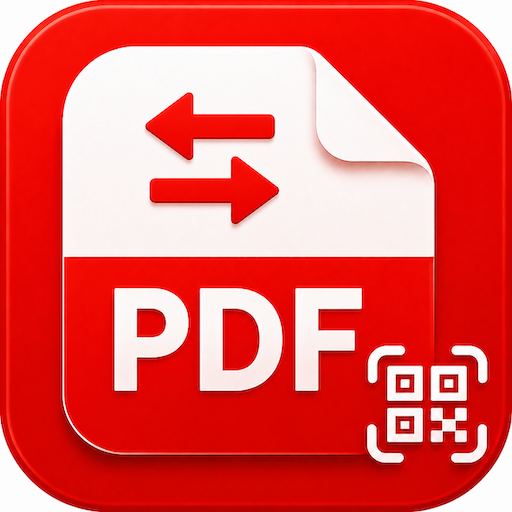
A sudden pop-up on an Android phone can be worrying. It does not, by itself, prove that the phone has a virus. Ads can come from a website notification or an installed app. This guide shows how to identify one PDF app that has drawn reports of screen-blocking ads, remove it if it is installed, and check a few other common causes.
The app to look for
The app is called PDF Reader & QR Scanner, by Cerkimot Enboopea on Google Play. Its package ID is com.cerkimot.pdfreader. The listing describes a PDF reader, file converter and QR/barcode scanner. Check the name and developer on the listing: other apps can use similar names or icons.

At our 22 October 2026 check, the Australian Google Play listing showed 10K+ downloads but no public star rating or rating count was visible. That leaves people without the feedback they often use to judge whether an unfamiliar app behaves as promised. A visible history of reviews can help establish user confidence and reveal recurring problems; downloads alone cannot do that. For an app with 10K+ downloads, no visible ratings is a reasonable transparency concern and makes legitimacy harder for users to assess. It is still not proof of harm or fraud: the listing may simply have no ratings available in this view. Our searches found no independent malware analysis naming this exact package as malware, which also does not establish that the app is safe.
The listing’s Data safety panel says the app may share App activity, may collect Location, Personal info and two other data types, encrypts data in transit, and says data cannot be deleted. The app’s linked privacy policy says core PDF, image and scan processing is local and that those files and scan results are not uploaded. The public information does not explain how the broader Play Store categories map to the policy, so read both and decide whether you are comfortable. Neither statement is proof that the app stole information.
If you find it on your phone
- Check the exact app. Compare its name and icon with the images above and confirm the developer is Cerkimot Enboopea. Do not rely on the icon alone.
- Uninstall it if you choose. Open Google Play Store → profile picture → Manage apps & devices → Manage → choose the app → Uninstall. Menu names vary by phone; you can also open Settings → Apps, find the app and tap Uninstall. See Google’s uninstall steps.
- Run a Play Protect scan. In Google Play Store, tap your profile picture → Play Protect → Scan. Keep app scanning on. Play Protect is an extra check, not a guarantee that every unwanted ad will be detected. See Google Play Protect.
- If ads continue, check where they come from. In Chrome, review site notifications and pop-up settings: Chrome → ⋮ → Settings → Site settings → Notifications, and Pop-ups and redirects. A website notification can look like an app alert. If ads cover other apps, review recently installed apps too. Google’s Android Chrome pop-up guide shows the steps.
Do not tap a pop-up claiming the phone is infected, install a cleaner it advertises, or grant an unfamiliar app Accessibility or “display over other apps” access just to make the alert go away. If you are unsure, ask someone you trust to help identify the app before removing anything important.
What we can and can’t conclude
This is a practical warning based on a specific app listing and user reports. It is not a claim that the app is a confirmed virus, that it steals data, or that it causes pop-ups on every device. If you have a similar problem, note the exact app name and developer, when the ads appear, and whether they continue after uninstalling. That information can help narrow down the source.
Sources checked 22 October 2026: Google Play listing · App privacy policy · Google Play uninstall help · Play Protect help · Chrome pop-up help for Android